GUI controls
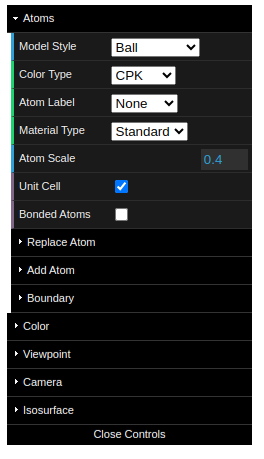
The graphical user-interface (GUI) allows users to set up and control the visualization of the atomic structure. It has the following components:
- Fix GUI:
Main controls (top left)
Buttons (top right)
- Dynamic GUI:
Adjust last operation (bottom left)
Timebar for animations (bottom middle)
Main Controls
One can open the control panel by clicking the open controls button on the top left. It has the following settings:
Model style
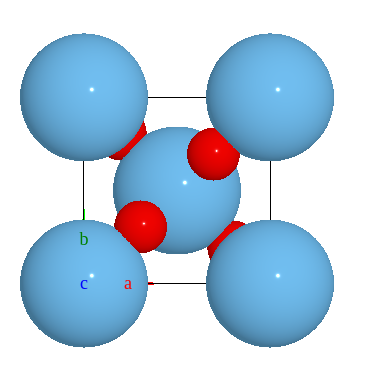
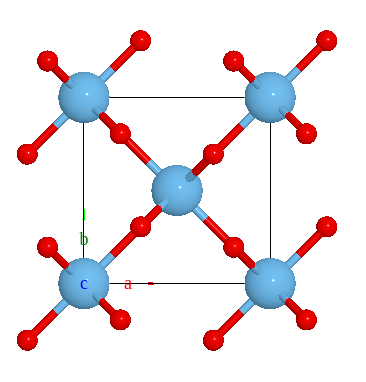
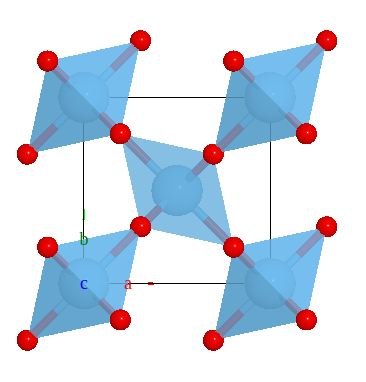
Here, four models are supported.
Ball |
Ball-and-stick |
Polyhedral |
Stick |
|
|
|
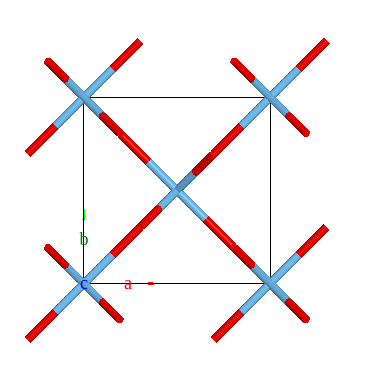
|
Tip
The Model Style setting applies exclusively to selected atoms. If no atoms are selected, it will apply to all atoms in the model.
Color style
Supported style are:
Label
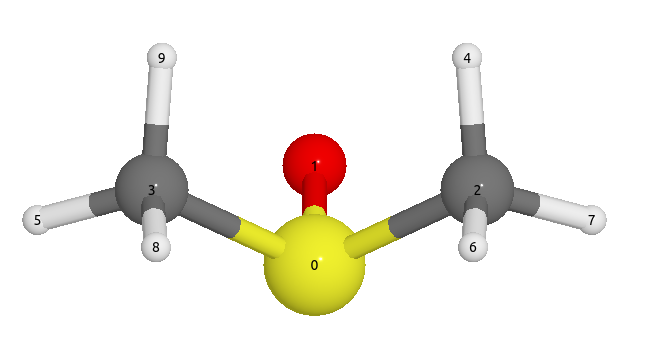
One can add label for each atoms.
You can input string like:
symbol
index
Here is a example of a molecule with index label:
Other parameters:
Atom Scale: change scale for all atoms.
Unit Cell: show or hide the unit cell.
Bonded Atoms: show or hide the bonded atoms outside the unit cell.
Replace Atom: replace the selected atom with another atom.
Add Atom: add a new atom to the structure.
Boundary: show atoms inside the boundary, making a supercell.
Buttons
There are several buttons on the top right of the GUI. They are:

Fullscreen: enter or exit fullscreen mode.
Undo: undo the last operation.
Redo: redo the last operation.
Download: download the current structure as a .cif file.
Measurement: measure the distance between two atoms.
Configuration
One can use a configuration dict to specify their GUI preferences, such as enabling/disabling the GUI entirely or choosing specific components to display.
Disable the GUI entirely
from weas_widget import WeasWidget
viewer = WeasWidget(guiConfig={"enabled": False})
viewer
Select specific components
from weas_widget import WeasWidget
guiConfig={
           "components": {
                          "enabled": True,
                          "atomsControl": True,
                          "buttons": True},
           "buttons": {
                       "enabled": True,
                       "fullscreen": True,
                       "download": True,
                       "measurement": True,
                       }
         }
viewer = WeasWidget(guiConfig=guiConfig)
viewer
Set viewer width and height
Use the widget layout (or container CSS) to control size.
import ipywidgets as ipw
from weas_widget import WeasWidget
# this sets the style of the viewer inside the widget
viewer = WeasWidget(viewerStyle = {"width": "800px", "height": "600px"})
# This sets the layout of the widget itself
# viewer.layout = ipw.Layout(width="800px", height="600px")
viewer
Show atoms legend
from weas_widget import WeasWidget
viewer.avr.show_atoms_legend = True